Integrating AI Tools Like Copilot into Existing Workflows
Integrating AI tools like Copilot into your development workflow can transform the way you write code, making it faster and potentially more efficient. However, the challenge lies in seamlessly incorporating these tools without disrupting existing processes or compromising code quality. This guide will walk you through the benefits, setup, best practices, and strategies to successfully integrate AI into your workflows, ensuring that your team can reap the rewards of AI-enhanced productivity.

Integrating AI tools like Copilot into your development workflow can transform the way you write code, making it faster and potentially more efficient. However, the challenge lies in seamlessly incorporating these tools without disrupting existing processes or compromising code quality. This guide will walk you through the benefits, setup, best practices, and strategies to successfully integrate AI into your workflows, ensuring that your team can reap the rewards of AI-enhanced productivity.
Photo by Tara Winstead from Pexels
TL;DR
- AI tools like Copilot can significantly enhance productivity and code quality when integrated into existing workflows.
- This guide provides a comprehensive setup tutorial, best practices, and strategies for effective integration.
- Addressing common challenges ensures a smooth transition and maximizes AI benefits.
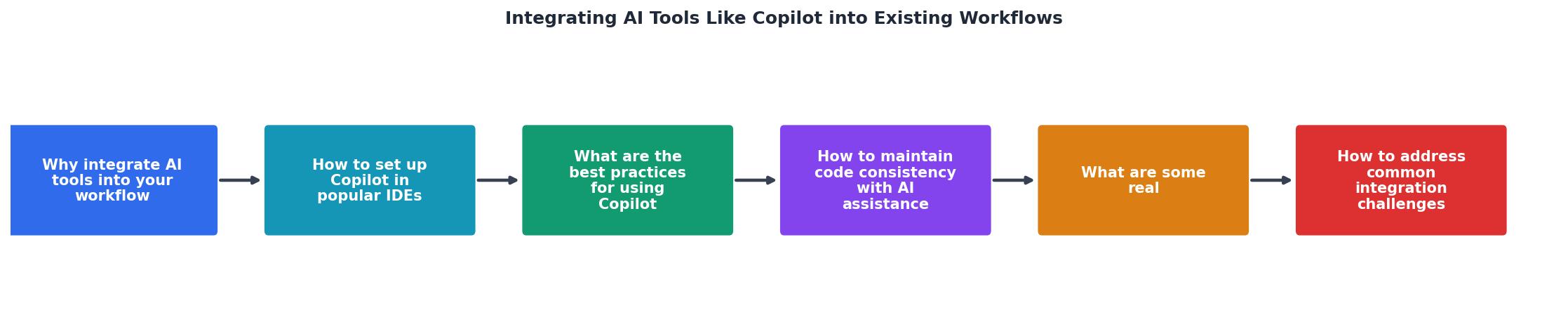
Why Integrate AI Tools into Your Workflow?
The integration of AI tools into development workflows is not just a technological upgrade, it's a strategic move to enhance productivity and maintain high-quality output. AI tools like Copilot can automate mundane coding tasks, offer real-time suggestions, and help detect bugs early in the development process. By reducing the time spent on repetitive tasks, developers can focus more on complex problem-solving and creative aspects of coding.
Moreover, AI tools can serve as a valuable learning resource. By suggesting best practices and modern coding standards, they help developers stay updated with industry trends. However, the key to leveraging these benefits lies in thoughtful integration into existing workflows.
How to Set Up Copilot in Popular IDEs
Setting up Copilot in your Integrated Development Environment (IDE) is a straightforward process, but it requires attention to detail to ensure smooth functionality.

Step-by-Step Setup Guide
- Choose Your IDE: Copilot is compatible with popular IDEs like Visual Studio Code, JetBrains, and Neovim. Ensure your IDE is updated to the latest version for compatibility.
- Install the Copilot Plugin: Navigate to the extensions marketplace within your IDE and search for the Copilot plugin. Click install and follow the on-screen prompts.
- Authenticate Your Account: Once installed, you'll need to authenticate with your GitHub account to access Copilot's features. This step ensures that your use of Copilot is linked to your development activity.
- Configure Settings: Customize the settings to suit your workflow. You can adjust parameters like suggestion frequency, language preferences, and shortcut keys.
- Test the Integration: Open a new project and start coding to test Copilot's functionality. Ensure that suggestions are relevant and useful.
What Are the Best Practices for Using Copilot?
To maximize the benefits of Copilot, developers should adopt certain best practices that ensure effective use without compromising code quality.
- Review Suggestions Critically: Always review AI-generated code. While Copilot can suggest efficient solutions, it might not always align with your specific project requirements.
- Pair Programming with AI: Use Copilot as a virtual pair programmer. Engage with its suggestions to learn different approaches to problem-solving.
- Set Clear Objectives: Define what you want to achieve with Copilot. Whether it's increasing speed, reducing errors, or learning new coding patterns, having clear goals will guide your interaction with the tool.
- Maintain Human Oversight: Keep human oversight in the loop. Copilot is a tool to augment human capabilities, not replace them.
How to Maintain Code Consistency with AI Assistance
Maintaining code consistency when integrating AI tools can be challenging, especially in team environments. Here are some strategies to ensure uniformity:
- Establish Coding Standards: Create a set of coding standards that all team members adhere to. This ensures that AI suggestions align with your project's style and architecture.
- Use Version Control: Implement robust version control practices. Tools like Git can help track changes and revert to previous versions if AI-generated code causes issues.
- Conduct Regular Code Reviews: Schedule regular code reviews to catch inconsistencies early. This practice helps in maintaining a high standard of code quality across the board.

What Are Some Real-World Examples of Successful Integrations?
- Company A: By integrating Copilot, Company A reduced development time by 30% and improved code quality, resulting in faster product releases.
- Startup B: A small startup used Copilot to onboard new developers more efficiently, cutting down the learning curve and enhancing team productivity.
How to Address Common Integration Challenges
Integrating AI tools like Copilot into your workflow can present several challenges, but these can be mitigated with strategic planning.
- Initial Resistance: Developers may resist using AI tools due to concerns about job security or changes in workflow. Address these concerns by highlighting the tools' benefits and providing training sessions.
- Compatibility Issues: Ensure that your development environment is compatible with the AI tools you plan to integrate. Regular updates and maintenance can prevent most compatibility issues.
- Over-reliance on AI: While AI can enhance productivity, relying too heavily on it can lead to skill atrophy. Encourage developers to use AI as an assistant rather than a crutch.
Integration Checklist for AI Tools in Workflows
Your progress is saved automatically in your browser.
FAQ
Frequently Asked Questions
Key takeaway: Integrating AI tools like Copilot into existing workflows can significantly enhance productivity and maintain code quality when executed with strategic planning and best practices.
Have you integrated AI tools into your workflow? Share your experiences and insights in the comments below!
Additional Resources
- Workflow Automation | Microsoft Copilot - AI automation brings together intelligent tools and technologies in practical ways. These tools help guide how work moves between systems, teams, and platforms.
- Introducing agent flows: Transforming automation with AI- ... - Just like building agents in Copilot Studio, makers can effortlessly create agent flows by simply describing their intent in natural language.
- How To Integrate AI Into Your Business (Agents) - Learn how to integrate AI into business: Evaluate readiness, identify and implement solutions, and scale with proven insights.
Ready to Master Vibe Coding?
Learn to build software faster with AI assistance using the Vibe Coding Bible.
Get Started