Tracking Changes in AI-Generated Code: Best Practices
You asked an AI to build your app, and it generated 47 files overnight. Now something is broken, and you have no idea which change caused it or when it happened. Tracking changes in AI-generated code is the single most important habit that separates shipped products from abandoned side projects. This guide walks you through setting up version control with GitHub and GitLab so you always know what changed, when, and why.


You asked an AI to build your app, and it generated 47 files overnight. Now something is broken, and you have no idea which change caused it or when it happened. Tracking changes in AI-generated code is the single most important habit that separates shipped products from abandoned side projects. This guide walks you through setting up version control with GitHub and GitLab so you always know what changed, when, and why.
Photo by Jakub Zerdzicki from Pexels
TL;DR:- Use Git (via GitHub or GitLab) to track every change AI tools make to your codebase.
- Commit after each AI generation session with descriptive messages that note the AI tool used.
- Compare GitHub and GitLab features to pick the platform that fits your workflow, then follow the step-by-step setup below.
Why tracking AI code changes matters
When you write code yourself, you remember what you changed. When an AI generates code, you often don't. A single prompt to Cursor or Claude can modify dozens of files simultaneously. Without version control, rolling back a broken change means starting over.
Version control gives you a complete timeline of your project. Every file addition, deletion, and modification gets recorded with a timestamp and a message explaining what happened. You can compare any two points in time, revert specific changes, and work on experimental features without risking your stable code.
For AI-assisted projects specifically, tracking changes solves three problems:
- Accountability - You can see exactly which AI-generated code introduced a bug.
- Rollback safety - One bad AI generation doesn't destroy hours of working code.
- Learning - Reviewing AI diffs teaches you what the AI actually changed, building your understanding over time.
GitHub for AI code tracking
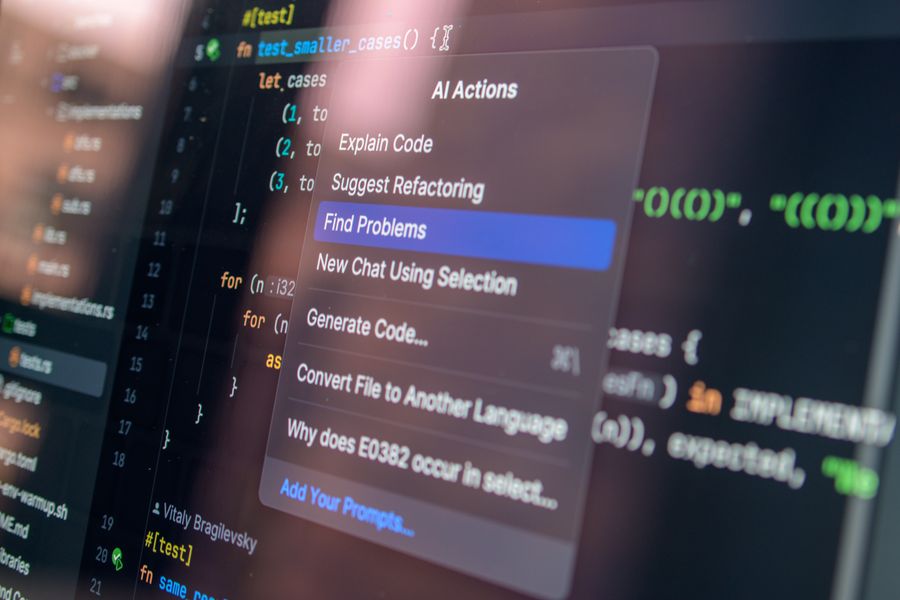
GitHub is the most widely used platform for hosting Git repositories. If you've never used version control before, GitHub is the easiest starting point because of its massive community, documentation, and integration with nearly every AI coding tool.
Key GitHub features for AI projects:
- Pull Requests - Package a set of AI-generated changes into a reviewable unit before merging into your main branch.
- Blame view - See who (or what) last modified each line of a file. When AI generates code, your commit message tells the story.
- Branch protection rules - Prevent direct pushes to your main branch, forcing all AI-generated code through a review step.
- GitHub Actions - Automatically run tests every time you push AI-generated code, catching breakage before it reaches production.
- Copilot integration - GitHub's own AI assistant works natively within the platform, and every suggestion you accept gets tracked in your normal commit history.
GitLab features for AI projects
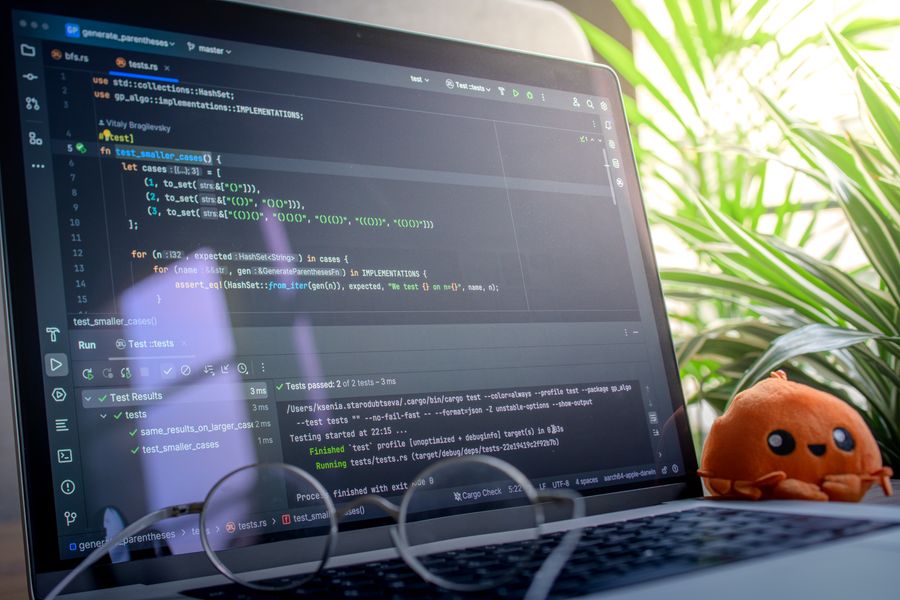
GitLab bundles version control, CI/CD pipelines, and project management into a single platform. Where GitHub requires third-party integrations for some workflows, GitLab ships them built-in.
What makes GitLab stand out for AI-assisted development:
- Built-in CI/CD - No marketplace setup needed. Define a
.gitlab-ci.ymlfile and your AI-generated code gets tested automatically on every push. - Merge request approvals - Require one or more reviewers before AI-generated code lands in production. Configurable per branch.
- Code quality reports - GitLab can run static analysis on every merge request, flagging issues in AI-generated code before you review it manually.
- Self-hosting option - Run GitLab on your own server if you need full control over where your AI-generated code lives.
- GitLab Duo - GitLab's AI features (code suggestions, vulnerability detection) integrate directly into the merge request workflow.
| Feature | GitHub | GitLab |
|---|---|---|
| Free private repos | Yes | Yes |
| Built-in CI/CD | Via Actions (config needed) | Native (.gitlab-ci.yml) |
| Code review | Pull Requests | Merge Requests |
| Self-hosting | Enterprise only | Free Community Edition |
| AI assistant | Copilot (paid add-on) | Duo (paid add-on) |
| Static analysis | Third-party Actions | Built-in code quality |
| Project boards | Basic Projects | Full issue boards + epics |
Both platforms use Git underneath. Your skills transfer between them, and you can even mirror repositories across both.
Integrating tracking with AI platforms

AI coding tools like Cursor, Claude Code, Lovable, and v0 each interact with your codebase differently. The tracking strategy stays the same: commit before the AI touches anything, let the AI work, then commit the result.
Here is the workflow that keeps your history clean:
The steps break down like this:
- Commit current state - Save your working code before prompting the AI.
- Create a branch - Isolate AI changes from your stable main branch.
- Run AI generation - Let Cursor, Claude, or your tool of choice make changes.
- Review the diff - Use
git diffto see exactly what the AI modified. - Test - Run your app and any automated tests.
- Commit with context - Write a message like
feat: add auth flow (Cursor, prompt: "add login page with email/password"). - Open PR/MR - Create a pull request or merge request for final review.
"Training is critical: Teams without proper AI prompting training see 60% lower productivity gains compared to those with structured education programs.">, AI code generation: Best practices for enterprise adoption in 2025
For Cursor specifically, it modifies files directly in your local workspace. Git tracks those changes the same way it tracks manual edits. For Lovable and v0, which generate code in a browser, download the output and commit it into your repository manually or use their GitHub integration to push directly.
Best practices for transparency
Tracking changes is only useful if the history tells a clear story. These practices keep your AI project history readable and actionable:
- One logical change per commit. If you asked the AI to add authentication and also refactor the database layer, split those into separate commits.
- Use conventional commit messages. Prefixes like
feat:,fix:,refactor:make scanning history fast. Add(AI-generated)or the tool name. - Tag AI-generated code. Some teams add a
generated-by: cursortrailer to commit messages. This makes filtering AI contributions trivial withgit log --grep. - Review every diff. Even if the AI output looks correct, read the diff. AI tools sometimes modify files you didn't expect.
- Protect your main branch. Require at least one review (even if it's your own) before merging. This creates a deliberate pause between generation and deployment.
- Automate testing on push. A GitHub Action or GitLab CI pipeline that runs your test suite catches AI-introduced regressions automatically.
The following interactive card summarizes the core version control workflow for AI-generated code at a glance.
AI Code Tracking Workflow
GitHub Version Tracking Setup
Your progress is saved automatically in your browser.
FAQ
Frequently Asked Questions
git log --grep="Cursor" and helps you understand the context behind changes when reviewing history months later.What's your current approach to tracking AI-generated code changes? If you've found a workflow that works, or if you're still figuring it out, share your experience. And for a deeper dive into building production-grade software with AI tools, check out the Vibe Coding Bible for structured guidance on shipping responsibly.
Additional Resources
- 10 Best Practices That Will Transform Your Code Review ... - Unlock 10 best practices to transform your code review process, improve quality, boost collaboration, and streamline development.
- AI code generation: Best practices for enterprise adoption ... - 1. Establish clear governance policies · 2. Prioritize code review and quality assurance · 3. Ensure data privacy and security · 4. Provide ...
- 7 AI Software Development Best Practices for 2026 - Maintain commit hygiene by requiring human review before merging AI-generated changes. Track which commits contain AI contributions to improve ...
Ready to Master Vibe Coding?
Learn to build software faster with AI assistance using the Vibe Coding Bible.
Get Started